Saturday, December 11, 2010

วิธีการ Install MS SQL Server 2005 (3)

วิธีการ Install MS SQL Server 2005 (3)

Okay. Let go to continue the installation Sql Server 2005 .Finally of SQL Installation .

11. Service Account . I'd like to advised you to select the option same the picture below.

Note: if you have found the error below . you must to do that same step number 11 but change the service name.


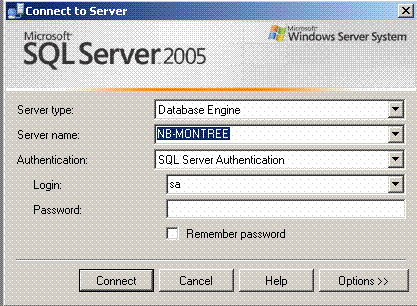
12. Authentication Mode : you should select hen Mixe mode is better because you can use 2 method for login to sql server .


13. fill in then Password. the policy same Window . you can used "Passw@rd" first after you change the it.


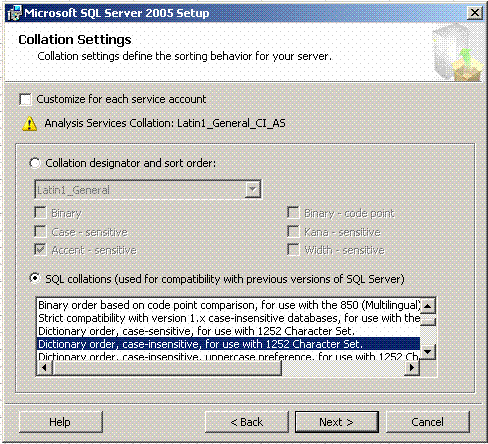
14. select the default Collation Settings .you can choosed same below.


15. Next


16.Click install Button for start "Install Microsoft SQL Server 2005 Setup"


17. Waitng utill the status display Setup Finished.


18.Completed installation Microsoft SQL Server 2005 Setup.


Completed the Install MS SQL Server 2005 .Thank you for your visit. next time i will write the configure for used the MS SQL Server 2005 advance setup.
I have writed this blog because i want to share idea for everybody and i'd like to see everybody share too. Thank you.

Hope you enjoy my blog. Krab.

Thursday, December 9, 2010

วิธีการ Install MS SQL Server 2005 (2)


วิธีการ Install MS SQL Server 2005 (2)

Okay , Let to continue to Install MS SQL Server 2005 or Install MS SQL Express

7.The Microsoft SQL Server 2005 Setup check the system configuration so may be you have found the error .all most the error about requirement of hard ware and need to your windows xp or other os shoud be install the iis server first so you can install the iis from Component of window included in the CD Installation . finally the status must be display "Success" . after that click the Next button for go to the next step.


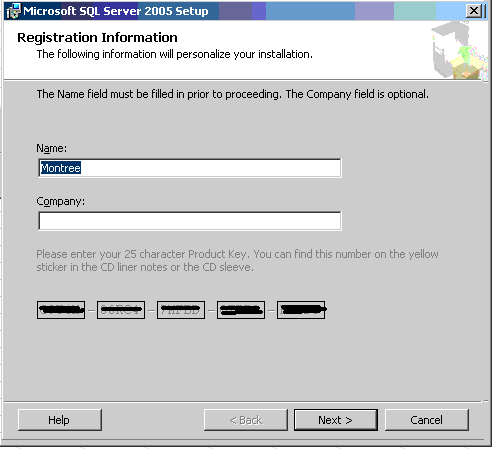
8. the Program promt for need you fill in the CD key and name.if you finish that after that click Next.


9.Choose the MS SQL Server 2005 Component you need to install .basicly choose sam the below shoud be Okay for the basicly becauase the reporting servic not used for the basicly that useful when you need to do about BI.


10. Choose the instance name meaning is your name of server or other you need to install one machine but need to install many instance you can select on the "name instance " and then fill in the server name follow by your require after that click on the button next.


วิธีการ Install MS SQL Server 2005 (1)


วิธีการ Install MS SQL Server 2005 Or How to Install MS SQL Server 2005
Hi, Today is holiday so i have time for write the step for install sql server 2005 and Sql server express ,Okay ,Let go . Below is step

1. Restart your machine first.
2. Insert the CD or DVD Program to Reader or go to path of program Install MS SQL Server 2005 and duble clike on Setup.exe
3.the program will Display screen below for confirm you about the agreement .the finally you should Tick the Accept on the "I accept the licensing terms and condition"


4. Show the picture after Tick on that box and then you must to click on the Next Button >>


5. MS SQL Server 2005 will check the component so you can click for next step


6. MS SQL Server 2005 ready to Installation .


Saturday, November 27, 2010

วิธีใช้งาน visual Basic 2005 กับ ฐานข้อมูล SQL Server 2005


วิธีใช้งาน visual Basic 2005 กับ ฐานข้อมูล SQL Server 2005
เมื่อกี่ไปเห็นที่ Google Guru มีคนถามถึงเรื่องนี้งั้นผมขอ แชร์ด้วยคนนะครับ

สร้าง connection ก่อนครับ

Module conndb

Public SLDBconnection As String = ReadINI.INIRead(Path.GetFullPath(".") & "\dbini.ini", "APPCONFIG", "SLDBconnection", "")


End Module
-----------------------------------------------------------------------------
ส่วนใน DBini file นั้นผมเขียนไว้ประมาณนี้ครับ


[APPCONFIG]
SLDBconnection = Data Source=nb-montree;database=Database;uid=sa;pwd=sa


usr=
pwd=

----------------------------------------------------------------

ต่อไป Class สำหรับอ่าน ini ครับ

Public Class ReadINI
#Region "API Calls"
' standard API declarations for INI access
' changing only "As Long" to "As Int32" (As Integer would work also)
Private Declare Unicode Function WritePrivateProfileString Lib "kernel32" _
Alias "WritePrivateProfileStringW" (ByVal lpApplicationName As String, _
ByVal lpKeyName As String, ByVal lpString As String, _
ByVal lpFileName As String) As Int32
Private Declare Unicode Function GetPrivateProfileString Lib "kernel32" _
Alias "GetPrivateProfileStringW" (ByVal lpApplicationName As String, _
ByVal lpKeyName As String, ByVal lpDefault As String, _
ByVal lpReturnedString As String, ByVal nSize As Int32, _
ByVal lpFileName As String) As Int32
#End Region

Public Shared Function INIRead(ByVal INIPath As String, _
ByVal SectionName As String, ByVal KeyName As String, _
ByVal DefaultValue As String) As String
' primary version of call gets single value given all parameters
Dim n As Int32
Dim sData As String
sData = Space$(1024) ' allocate some room
n = GetPrivateProfileString(SectionName, KeyName, DefaultValue, _
sData, sData.Length, INIPath)
If n > 0 Then ' return whatever it gave us
INIRead = sData.Substring(0, n)
Else
INIRead = ""
End If
End Function

End Class
---------------------------------------------------------------------
จากนั้นก็ลงมือสร้าง ฟอร์ม หน้าตาแบบนี้ แล้วก็ประยุคต์ source code ดูนะครับ


Public Class frmitem


Private Sub btnsearch_Click(ByVal sender As System.Object, ByVal e As System.EventArgs) Handles btnsearch.Click
Dim connection As New SqlConnection
Dim da As SqlDataAdapter
Dim ds As DataSet = New DataSet

With connection
If .State = ConnectionState.Open Then .Close()
.ConnectionString = SLDBconnection
.Open()
End With


Dim command As SqlCommand = New SqlCommand("STPxListItem", connection)
command.CommandText = "Exec STPxListItem '" & txtsitem.Text & "'"
command.Connection = connection 'Active Connection


da = New SqlDataAdapter(command)
da.Fill(ds, "litem")


If ds.Tables("litem").Rows.Count <> 0 Then

With grdview
.ReadOnly = True
.DataSource = ds.Tables("litem")
End With

Else

grdview.DataSource = Nothing
End If


End Sub
End Class

Friday, November 26, 2010

Percent Discount

วิธีคิด เปอร์เซ็นส่วนลดสินค้า

วิธี คำนวณ เปอร์เซ็นส่วนลดสินค้า เสื้อผ้า

วันนี้ผมมี วิธี คำนวณ ส่วนลดสินค้าว่าที่ร้านลดให้เรานั้นคิดเป็น กี่เปอร์เซ็นกันแน่
ตัวอย่างเช่น ร้านขาย เสื้อผ้าแฟชั่นสไตล์เกาหลี ร้านขาย แฟชั่นสไตล์เกาหลี ติดป้าย ราคาขาย เสื้อผ้าแฟชั่นสไตล์เกาหลี ไว้ 1300 ผมเข้าไปต่อราคาเหลือ 850 บาท และถ้าผมอยากรู้ว่า ร้านนั้นเขาลดราคาให้ผมกี่เปอร์เซ็นกันแน่นะ มาเริ่มกันเลยดีกว่า

ผมกำหนดให้ ราคาเก่า = X ,ราคาใหม่ = Y , Z = จำนวนเงินส่วนลด
z = x - y
z = 1300 - 850
z = 450 บาท

ฉะนั้นผมรู้แล้วว่าร้าน ขาย เสื้อ เสื้อแฟชั่นสไตเกาหลี ลดให้ผม 450 บาท แล้ว 450 บาทนั้นคิดเป็นกี่เปอร์เซ็นของ 1300 ล่ะครับที่นี้
PD = Percent Discount
PD = (z/x) x 100
แทนค่า

PD = (450/1300) x 100
PD = 34.61 %

ฉะนั้นเราก็รู้แล้วนะครับว่าเราได้ส่วนลดตั้ง 34.61 เปอร์เซ็นเลยที่เดียว
ผมคิดว่าสูตรง่ายพวกนี้เป็นสิ่งที่เราไม่ควรมองข้ามนะครับเลยเก็บมาฝากเพื่อน ๆ พี่ ๆ น้อง ๆ ครับ

Saturday, November 20, 2010

Link for Free web directory submit

Link for Free web directory submit, free web site submit,submit web page
Hi,Friend. You are looking for free Link Submit Web high Rank .
This link help you to finding the High Rank(PR) and Free Submittion web . you can click on the link
and then you find out the web for you submit, i think,You choose PR each the web should be that more than you web site or you choose PR > 2 and then when you stay on the submittion web you must to find out wording is Submit Link,Submit site ,something like that.
Okay Let go to Free web directory submit.